Product photos to ad images

Create an ad poster from your product photos

Upload product images, add a short campaign line if needed and describe the setting you want. Product To Poster prepares the visual prompt and generates a poster image in one request. Sign-in is required for uploads; generation uses account credits.

Product images

Optional. Leave blank if you want a text-free poster without added headline copy.

Leave the additional requirement blank if you want the workflow to invent a tasteful poster scene for you.

Recent runs

Review uploaded product references and finished poster outputs in one place.

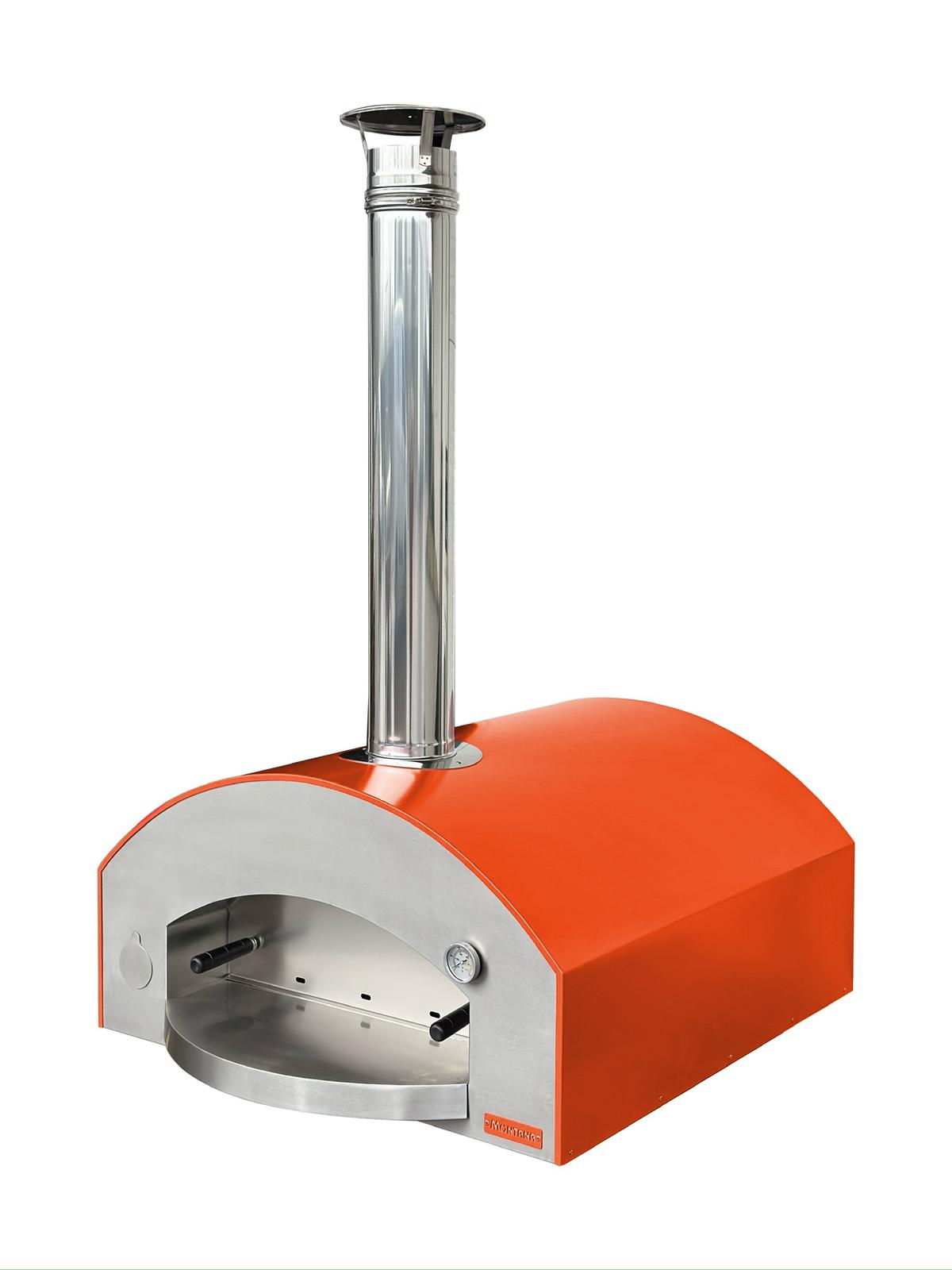
Product to poster input example
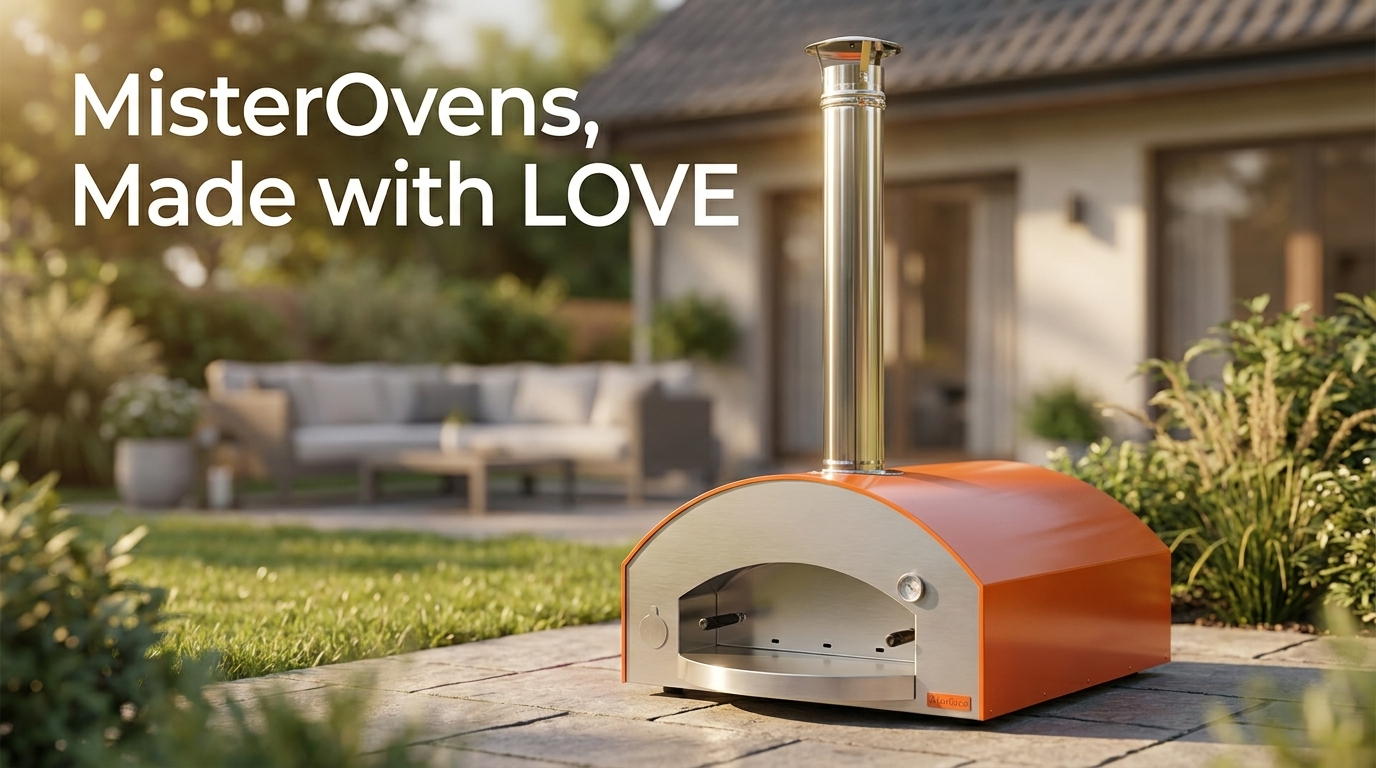
MisterOvens, Made with Love
Additional requirement: put it in a garden
Product to poster output example

From product photos to a poster image

1

Upload the product references

Sign in and choose one to eight JPG, PNG or WebP images, up to 10 MiB each. Use clear product views and check that each intended image finishes uploading.

2

Set the message and composition

Add optional ad copy up to 160 characters and scene guidance up to 800. Choose a ratio such as 4:5, 1:1, 9:16 or 16:9; the default is 4:5.

3

Generate, inspect and download

Generate starts automatic prompt preparation and image generation without a separate draft review. Open the available result, compare it with your product references and check the lettering before downloading.

A focused product-poster workflow

Product photos as the starting point

Use several views of one item or an intentional set of products for the same poster. References guide generation; packaging, logos and proportions still need inspection.

Optional headline and scene direction

Supply the campaign words you want and a setting to support them. With no scene guidance, the workflow proposes a composition. Leaving copy blank requests no added headline unless your scene instructions ask for text.

Automatic prompt preparation

The tool expands your inputs into an image prompt and uses Nano Banana Pro with 1K PNG output. Model, resolution and format are preset; this page has no selector for them.

Give the product one clear setting

For a compact desk lamp, use a clear front view and a second angle that shows the base and switch. A short campaign line might be “Light for late ideas.” In the scene field, request a walnut desk at dusk, a warm pool of light and an uncluttered background, with the lamp as the main subject. Choose 4:5 for a portrait composition.

Keep the request focused on one visual idea. Avoid adding product specifications or claims that the photos cannot establish. After generation, compare the base, switch, cable, logo and proportions with the source images. Read the headline letter by letter and check that it has not introduced an unintended offer or extra words.

The optional copy field is for words to appear in the image; the scene field describes how the composition should look. A short, clear headline leaves more room for the product than a long paragraph.

If the priority is an editable menu, flyer or text-heavy layout, use Design Agent. For other tasks, browse DojoClip applications.
Product poster generator questions

Can I make a poster without a headline?

Yes. Leave ad copy blank and avoid asking for visible text in the additional requirement. This instructs generation not to invent a new slogan, but it is not a guarantee of a completely text-free image. Check the result and existing packaging text.

Do multiple photos create separate posters?

No. All ready references are used in one poster request. Show useful angles of the same product, or explain that different items belong together. Avoid unrelated images that make the intended product set unclear.

Can I review or edit the expanded prompt first?

The prompt is prepared automatically after you choose Generate and is used without an intermediate editing step. If automatic drafting is unavailable, the workflow can continue with standard prompt instructions. Put essential scene requirements in the form before submitting.

When are my photos uploaded?

After sign-in, selecting files starts uploading them to your account. The workflow processes references online. Wait for the photos you intend to use to show ready; if an upload fails, remove it and upload it again before generating.

Is the result an editable poster design?

It is a generated PNG image, not a layout with separately editable text and objects. Use Design Agent when you need to change prices, text size or text blocks directly. There is no print-PDF, layered-file or 4K output selector on this page.

Can I revise a poster or check a pending request?

Change the copy, scene or ratio and generate again to request another image using credits. Refresh checks existing tasks; it does not create a new poster. Keep the original product references for comparison because a new generation can change both the scene and product details.