Text to video
Describe a shot, animate a starting image or guide a new scene with references. Choose a compatible model, check the credit total and review the generated footage.
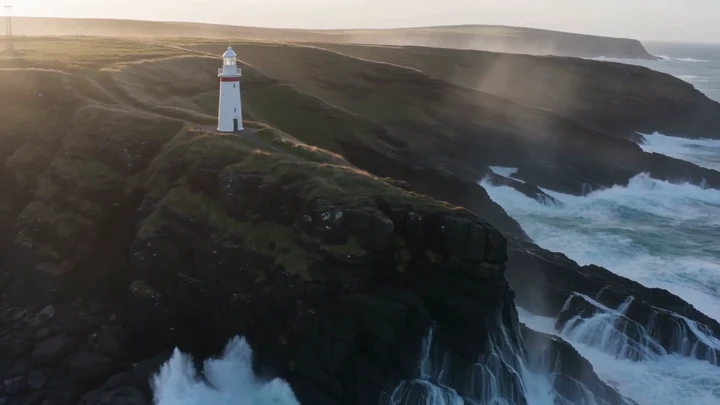
Explore the prompts and inputs behind these clips.
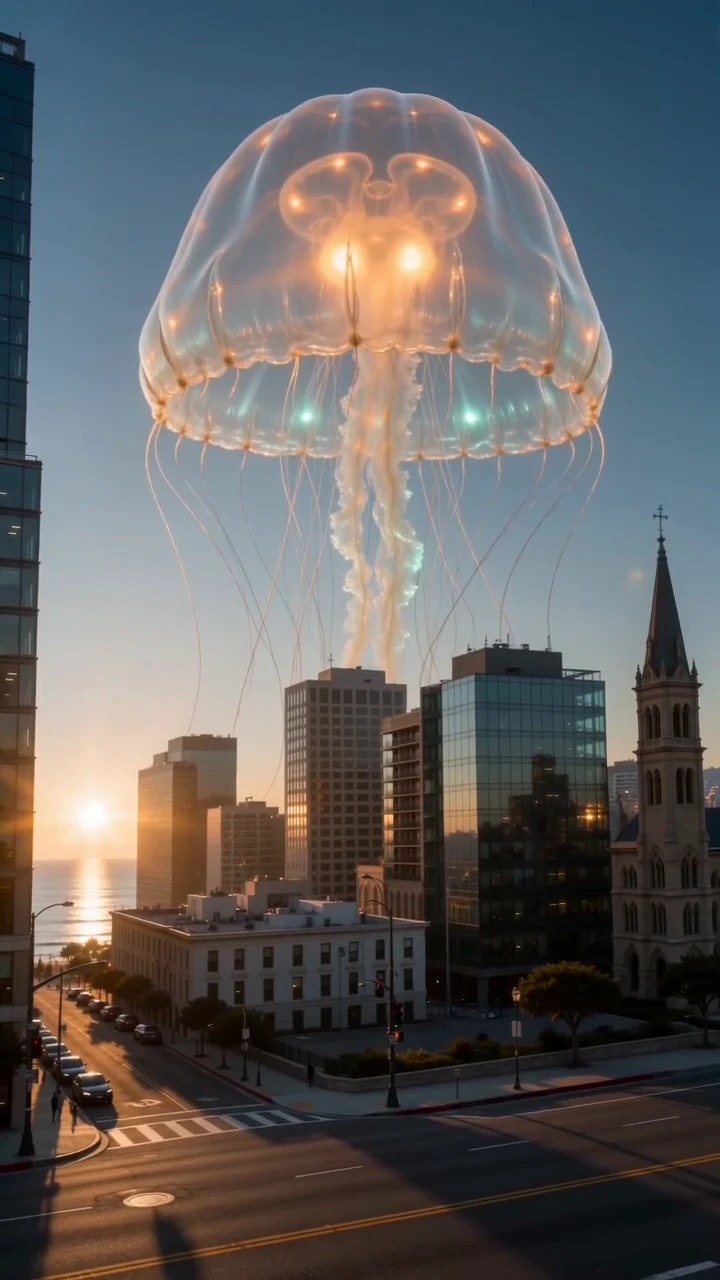
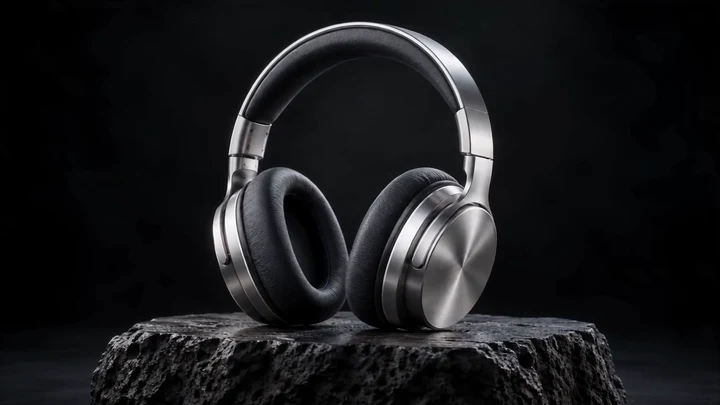
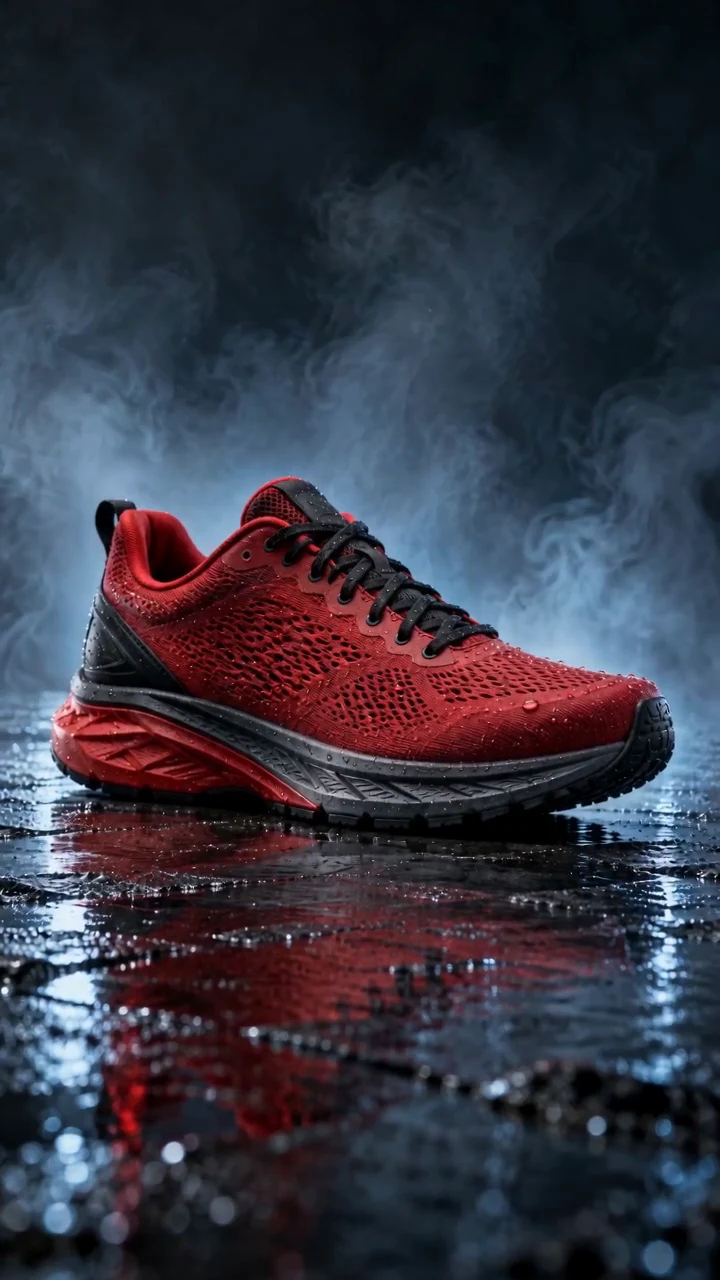
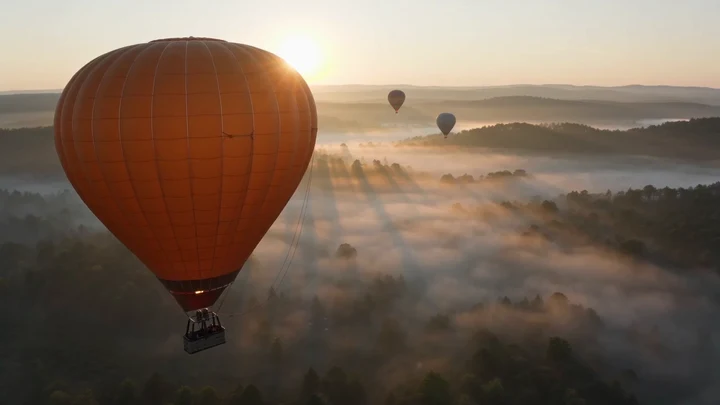

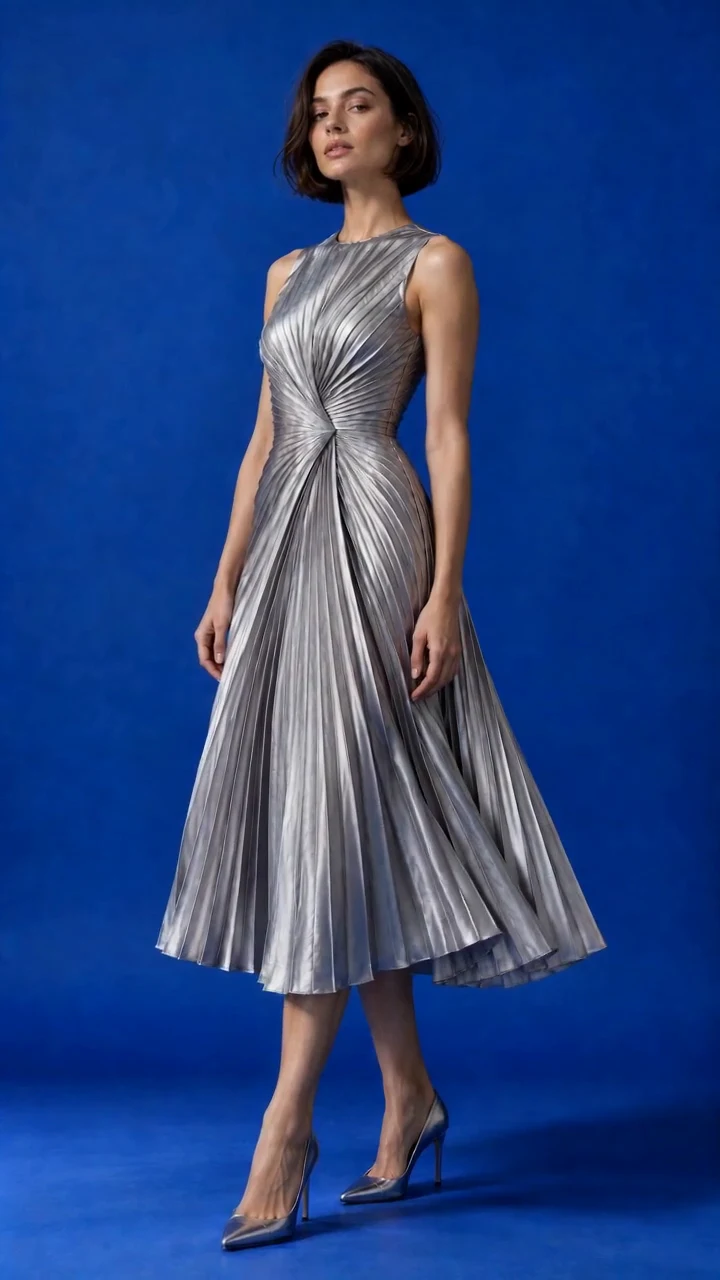

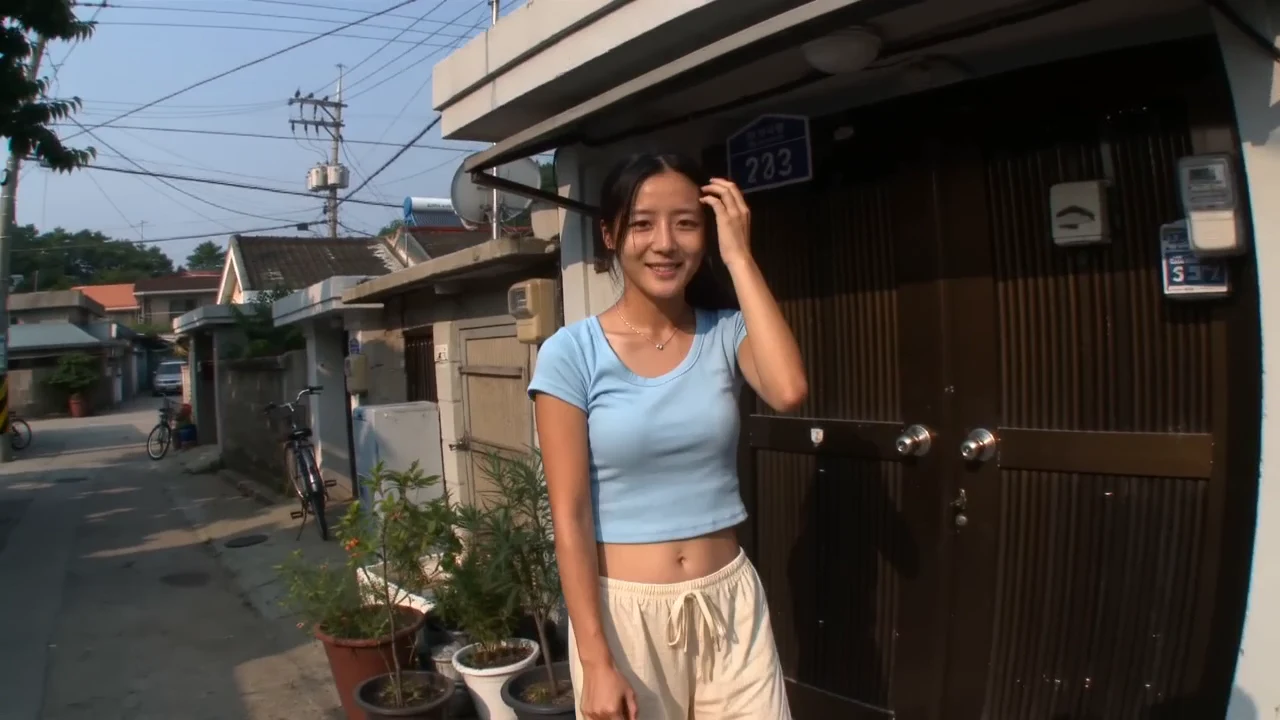

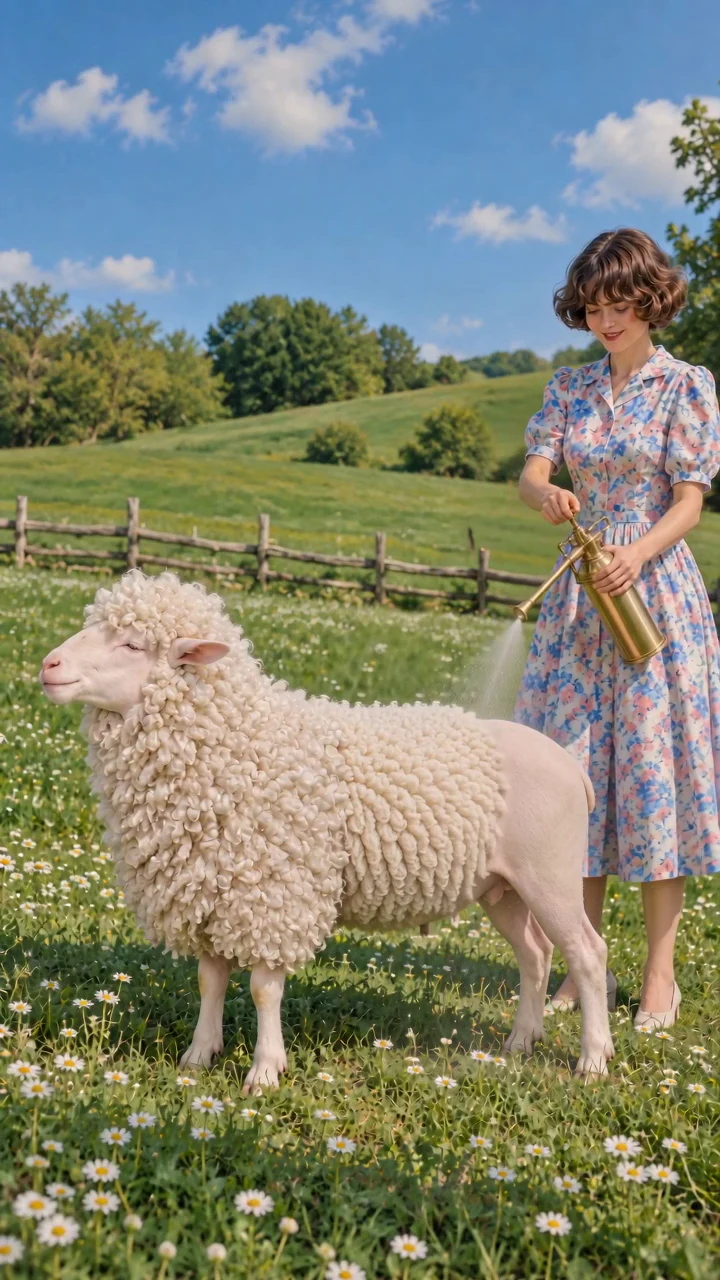



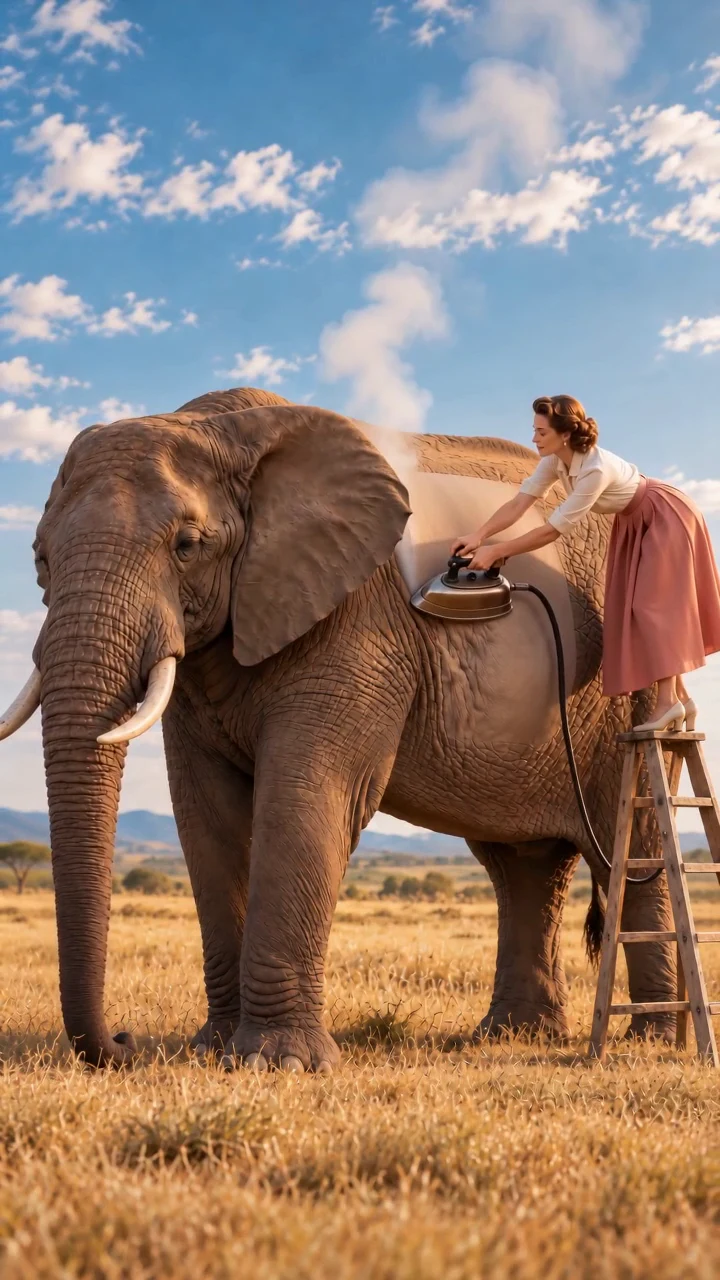
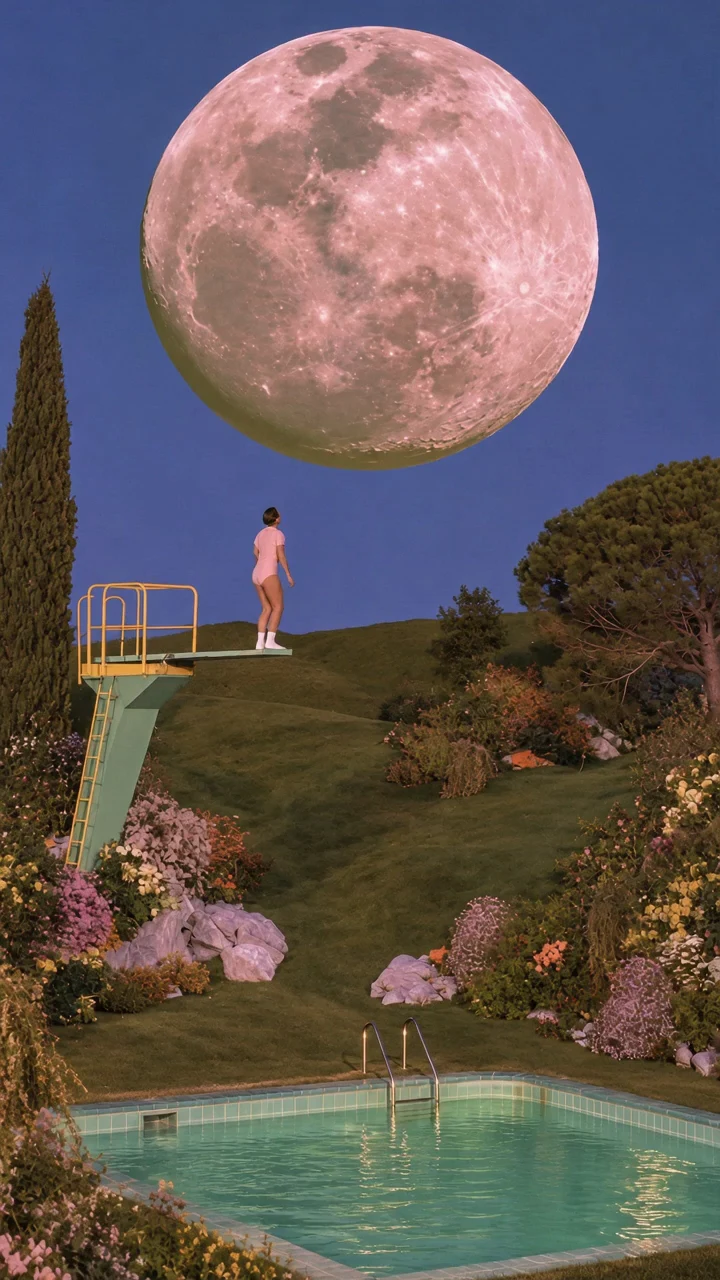

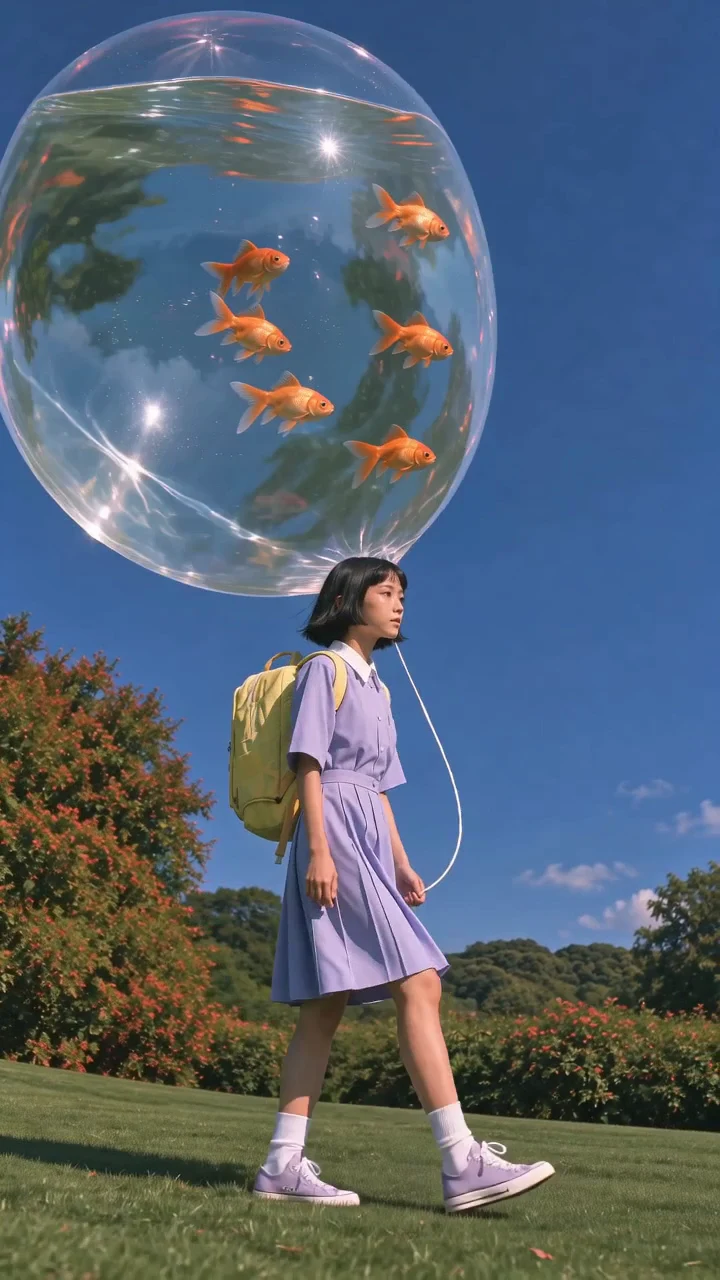
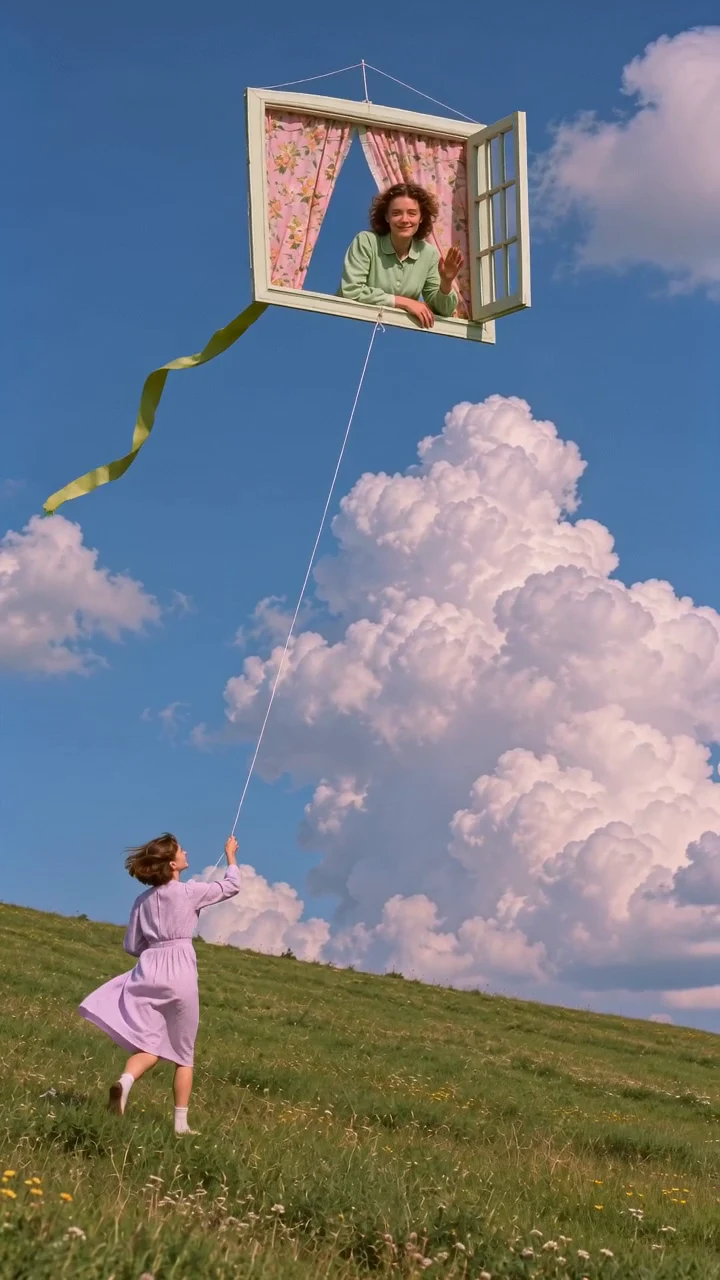




Choose image-to-video and frame mode, then add a clear photo of a ceramic teapot as the start image. Try a prompt such as: “The camera slowly moves around the teapot. Steam rises from the spout; the wooden table and background stay still.” Focus on what should move instead of repeating every visible detail.
Select an available model and ratio, check the duration and start with one choice to assess the direction. Review the displayed credit total before generating. An optional end frame can guide a destination; it does not turn the tool into a guaranteed image-to-image transition.
Preview the result in history, checking the handle, spout, steam and any sound. Download a useful take. For changes to footage you already have, choose Video Restyle; for transferring movement from a reference clip, use Motion Control. Explore all applications for other tasks.
Explore how a scene might move before assembling a longer video. Keep the subject action and camera direction simple.
Use a product photo as a starting frame and describe a camera move or environmental motion. Check labels, shape and proportions in the result.
Provide images to guide a subject, setting or style. Compare variations before choosing footage for a campaign or story.
Frames guide the opening and optional ending of a shot. References guide its subject or visual direction without specifying exact endpoints. These are generation inputs, not guarantees of identical faces, products or frame-by-frame continuity.
Seedance 2 Standard and Fast support text, frame and reference modes here, at 480p and 720p respectively. Kling 3.0 is offered in frame mode at 1080p. Resolution follows the model; aspect-ratio options also differ.
Seedance offers 4–15 seconds and Kling 3–15 seconds. Changing duration requires eligible paid subscription access. Without it, the defaults are 4 seconds for Seedance and 5 for Kling; generation still requires sufficient credits.
The model’s per-second rate, any per-video base charge and the number of choices determine the total shown on Generate. Sign in before submitting. If pricing changes, reload and review the new total. Multiple choices are separate tasks and can finish differently.
Each image may be up to 15 MiB and must be readable by the upload workflow. Images are uploaded for cloud generation after sign-in. This page has no soundtrack upload or mute switch; listen to any generated audio before using the result.
There is no seed control or guaranteed repeatable result. Refresh checks existing tasks; clicking Generate again starts new paid work. The history offers video downloads, not an export-format selector. Completion time and visual fidelity vary.