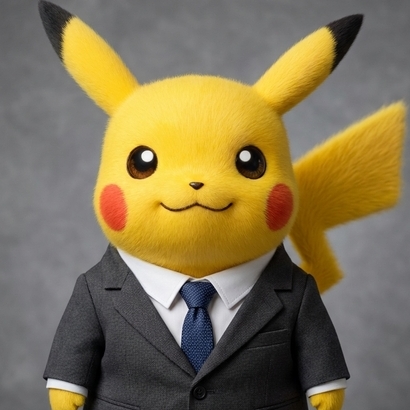
Professional profile portraits

Create a professional LinkedIn headshot from one selfie

Upload a clear selfie and generate a portrait with a professional wardrobe, lighting and background direction. Choose the framing, then compare the result with your original before using it on a profile or professional bio. Uploads run online and generation requires a signed-in account with credits.

Selfie

Dimensions

Best input for clean headshots

Use one clear front-facing selfie with your full face visible and simple lighting.

Recent runs

Review uploaded selfies and finished headshots in one place.

Input image example
Generated headshot example

From selfie to a reviewed profile portrait

1

Upload one clear selfie

Sign in and choose one JPG, PNG or WebP image up to 10 MiB. Selecting it starts the upload to your account. Use a sharp photo of one person with the face clearly visible.

2

Choose the frame and generate

Select 1:1, 9:16 or 16:9; square 1:1 is the default. Wait for the upload to be ready, then generate with credits. The portrait treatment is preset, with no written prompt required.

3

Inspect and download

Open an available result from history, compare facial details and framing with your selfie, and download the portrait you want to use. Check it at small profile size as well as full size.

A focused headshot workflow

One selfie as the source

Start from one image rather than uploading a training set. The request is directed toward a professional head-and-shoulders or chest-up portrait; review the actual crop and likeness.

Three framing choices

Choose a square, vertical or horizontal frame for the intended layout. Generation uses Nano Banana Pro at 1K in PNG; model, resolution and format are preset.

Source and results together

Account history shows the source selfie, task status and available images. Open a larger preview and download the result; Refresh checks the existing request.

Choose a portrait that remains recognizable at profile size

For a speaker bio or a refreshed professional profile, start with a recent selfie taken in even light, with the camera near eye level. Keep the face unobstructed and leave room around the shoulders. There is no need to write instructions about a suit or office backdrop because this page applies its own portrait direction.

Begin with square framing if the image will sit in a compact profile area. After generation, inspect it at full size for altered features, stray hair edges, uneven eyes or unnatural clothing details. Then reduce the preview to the size people will actually see. Check that the face remains clear and that a circular profile crop would not cut off important parts of the head.

A professional-looking result should also feel appropriate for how you present yourself. If the likeness or generated styling is unsuitable, try a clearer source image in a new request or use AI Photo Editing for a more specific change.

Browse DojoClip applications for other image and creative tools.

LinkedIn headshot generator questions

What selfie should I use?

Use a recent, well-lit image of one person with the face in focus and room around the head and shoulders. Avoid heavy filters, strong backlighting and objects obscuring the face. This gives the model a clearer reference; it does not guarantee a particular result.

Can I choose the outfit, background or portrait style?

This form offers the source image and three aspect ratios. It has no outfit, background, profession, model or custom-prompt selector. The preset aims for professional clothing, studio-style light and a neutral or softly blurred setting. Use AI Photo Editing for a written change request.

Will the result still look like me?

Preserving likeness is a generation goal, not a guarantee. Compare the eyes, smile, hairline, skin texture and any distinctive details with your original. Do not use a result that changes your appearance in a way you do not want.

Which frame and download format are available?

Choose 1:1 square, 9:16 portrait or 16:9 landscape before generating. These set the image frame rather than a precise face crop. The workflow produces a 1K PNG; there is no JPG, 4K or manual cropping control on this page.

How many portraits do I get, and does generating again cost credits?

The workflow requests one finished portrait per submission and has no batch-size or style-bundle selector. Available results appear in history. Generating again starts another image-generation request using credits; Refresh does not create a new portrait.

Is this a passport or identity-photo tool?

No. It is intended for professional profile portraits and bios. It does not check passport, visa or identity-document requirements or certify that an image meets them. It also does not upload your result to LinkedIn automatically.