 4:25
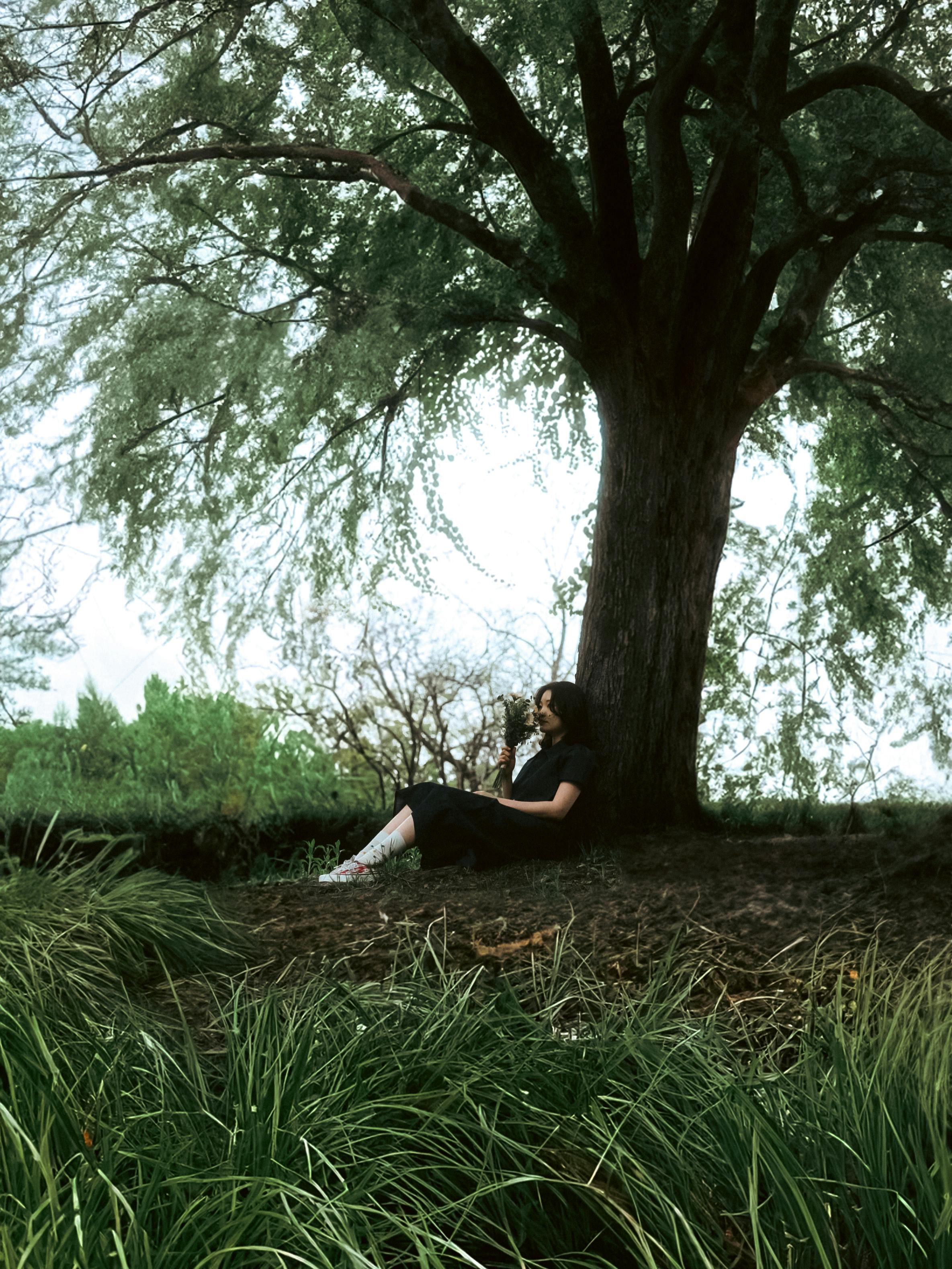
4:25Summer Love
Under the Summer Tree.
0:00/0:00
Start with a photo and the story you want to tell. AI drafts a title, musical style and optional lyrics for you to edit before generating a song or instrumental. Drafting requires sign-in; final audio generation uses credits.
Upload the photo and describe the mood
Use the image plus a few notes to draft a title, style, and optional lyrics.
Review the generated draft
Review and edit the title, style, and lyrics before generating the song.
Instrumental only
Skip lyric drafting and create only title and style direction.
Featured example
Summer Love
Under the Summer Tree.
4:25Under the Summer Tree.
 3:07
3:07Good Day Starts with a Good Morning Café.
 2:42
2:42Days of the Catch.
Select one JPG, PNG or WebP image up to 8 MiB. Check its preview and add optional notes about the scene, memory, instruments or mood you want.
Choose instrumental-only mode or a lyric language. Sign in and start drafting: this sends the photo and notes for cloud analysis, returning a title, style and optional lyrics.
Correct the text, confirm the instrumental setting and add any exclusions. Generate audio using account credits, listen to the available results and download a completed track.
The image provides a starting point. Your notes can explain who or what matters, the occasion and whether the music should feel playful, reflective or energetic.
Review the proposed title, style and lyrics before requesting audio. Replace invented details and adjust the musical direction to suit your purpose.
For a vocal song, choose English, Spanish, French, German, Italian, Portuguese, Korean, Chinese or Japanese. Review the wording before generation.
Turn on instrumental-only mode to draft a title and musical style without lyrics. You can also change this setting at the review step.
A photo of a rainy railway platform could suggest sadness, suspense or a happy return home. If it marks the end of a trip with friends, say so: “A cheerful memory of our last train home. Warm acoustic guitar, light percussion and a relaxed feel.” Turn instrumental-only on for background music, or leave it off and choose a lyric language for a song about the memory.
Read the proposed style and lyrics together. Remove a place name the AI guessed, correct who was present and check that the chorus reflects the memory you described. A new text draft is still a plan for the music; listen to the generated recording before deciding whether it fits.
Already have a written idea or finished lyrics? Use the main music generator. To choose a separate video workflow, browse DojoClip applications.
Selecting a file displays a local preview and can save a draft in this browser. The photo and notes are sent to the cloud when you start the signed-in draft action. This is not an entirely local photo-to-music tool.
Yes, in both steps. The review toggle changes the generation mode; it does not write new lyrics. If your instrumental draft has no words, add lyrics yourself or return to the first step, turn instrumental-only off and draft again. Also revise any conflicting style description.
No. A photo cannot establish names, relationships, dates or what someone was feeling. Put relevant facts and your intended tone in the notes, then check the draft. The resulting music is an interpretation, not a verified account of the scene.
Edit the title up to 80 characters, musical style up to 1,000, lyrics up to 5,000 and exclusions up to 2,000. With vocals enabled, choose automatic, male or female vocal preference. There is no exact song-duration or BPM selector.
It generates audio from the reviewed text when you choose Generate music. It does not animate the image or automatically assemble a video. Download the track and import it separately into a video project if you want to combine picture and sound.